How to Edit YouTube Videos Like a Pro

How to Edit YouTube Videos Like a Pro
Want your viewers to watch longer, like more, and subscribe to your channel?
It all starts with great editing. With a few simple strategies and the right tools, you can dramatically improve how professional and engaging your videos look.
Choosing the Right Editing Software
The first step is picking software that matches your skill level and budget.
Adobe Premiere Pro
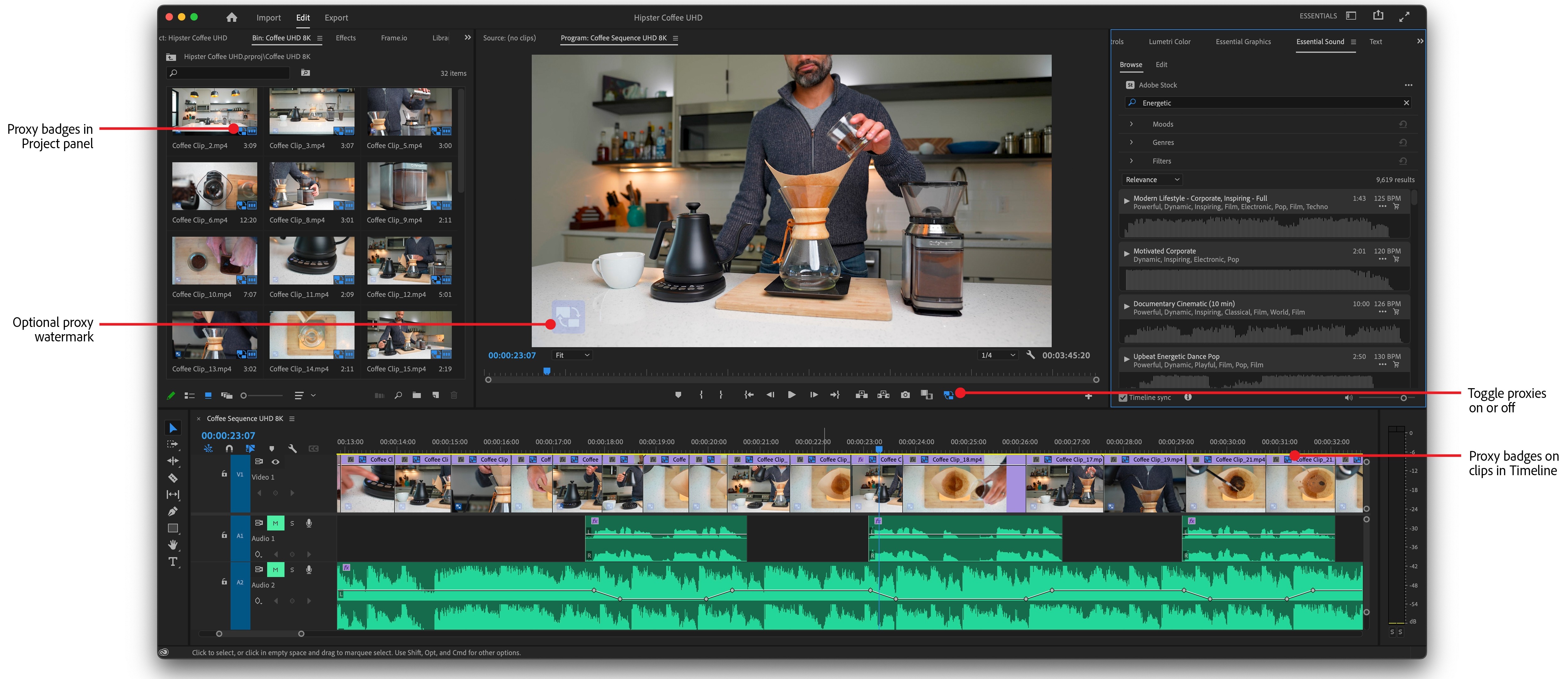
If you’re aiming for industry standards, Adobe Premiere Pro is a popular choice, offering powerful features for $20.99 per month. Many YouTubers, filmmakers, and content creators trust Premiere for its vast editing capabilities and professional output.
Final Cut Pro
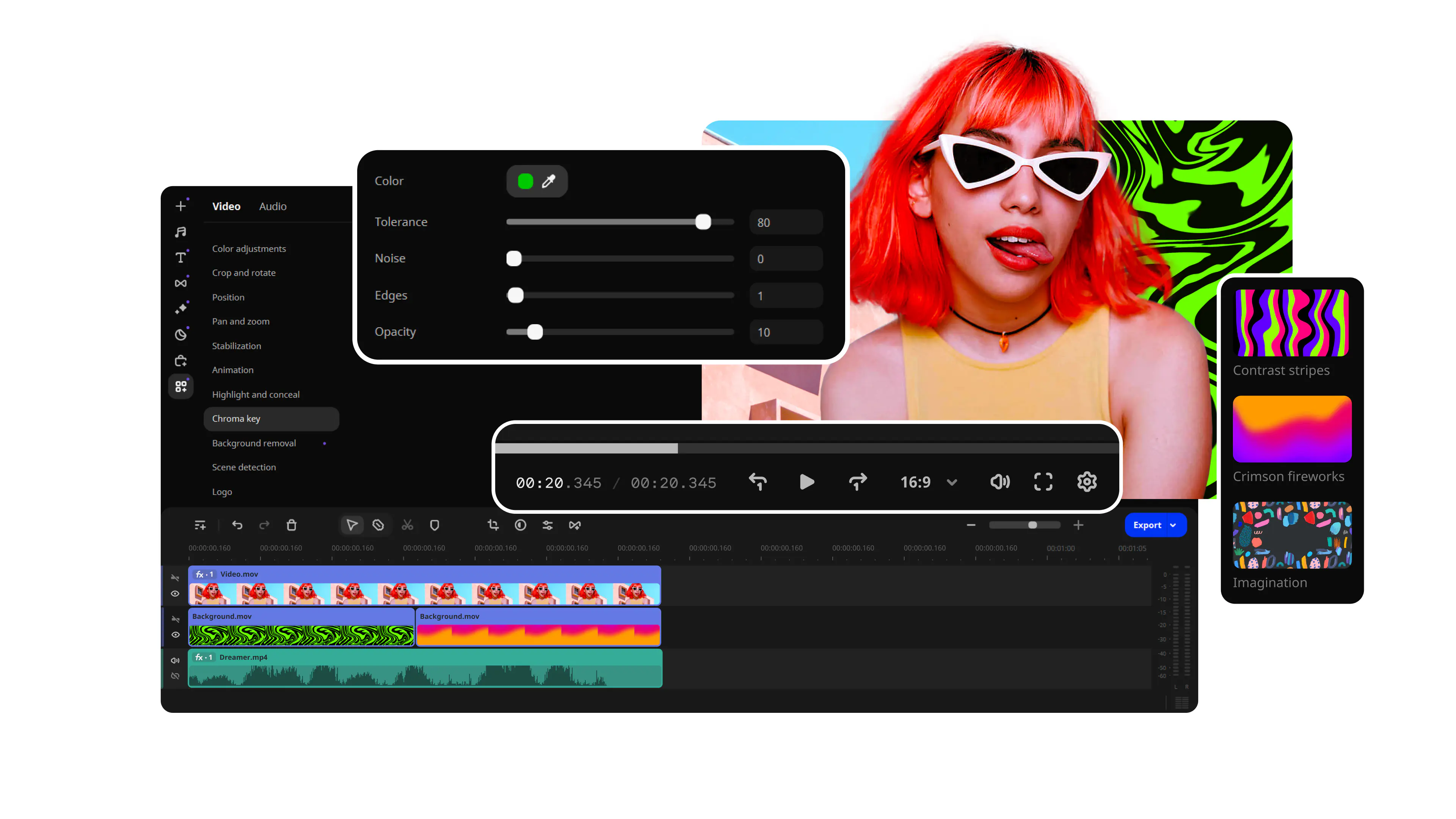
Mac users often prefer Final Cut Pro, which is fast, stable, and comes with a one-time fee of $299. It integrates beautifully with the Apple ecosystem.
CapCut

For beginners or anyone on a tight budget, CapCut is a fantastic option. It’s free, easy to use, and still provides plenty of editing capabilities to get your videos looking sharp.
Cutting Out the Boring Parts
Once inside your editor, focus on trimming the excess.
Long pauses, awkward silences, and filler words can quickly bore viewers. By cutting these out, your video becomes more snappy and engaging, holding your audience’s attention all the way through.
Enhancing with Text and Graphics
Canva Pro
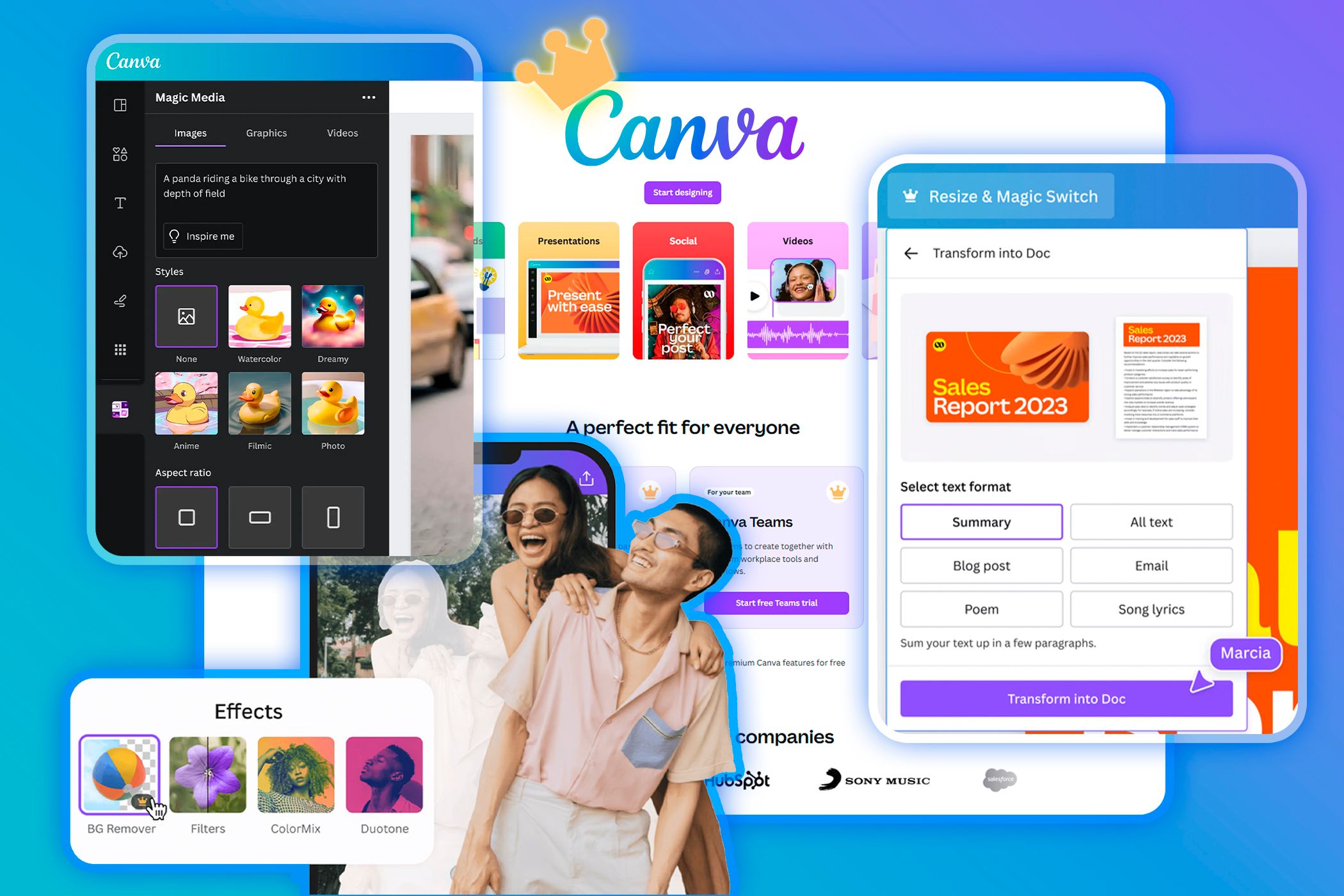
Adding text overlays and graphics can significantly boost your video’s professionalism. Tools like Canva Pro allow you to create eye-catching lower-thirds, subscribe buttons, and other visual elements.
Envato Elements
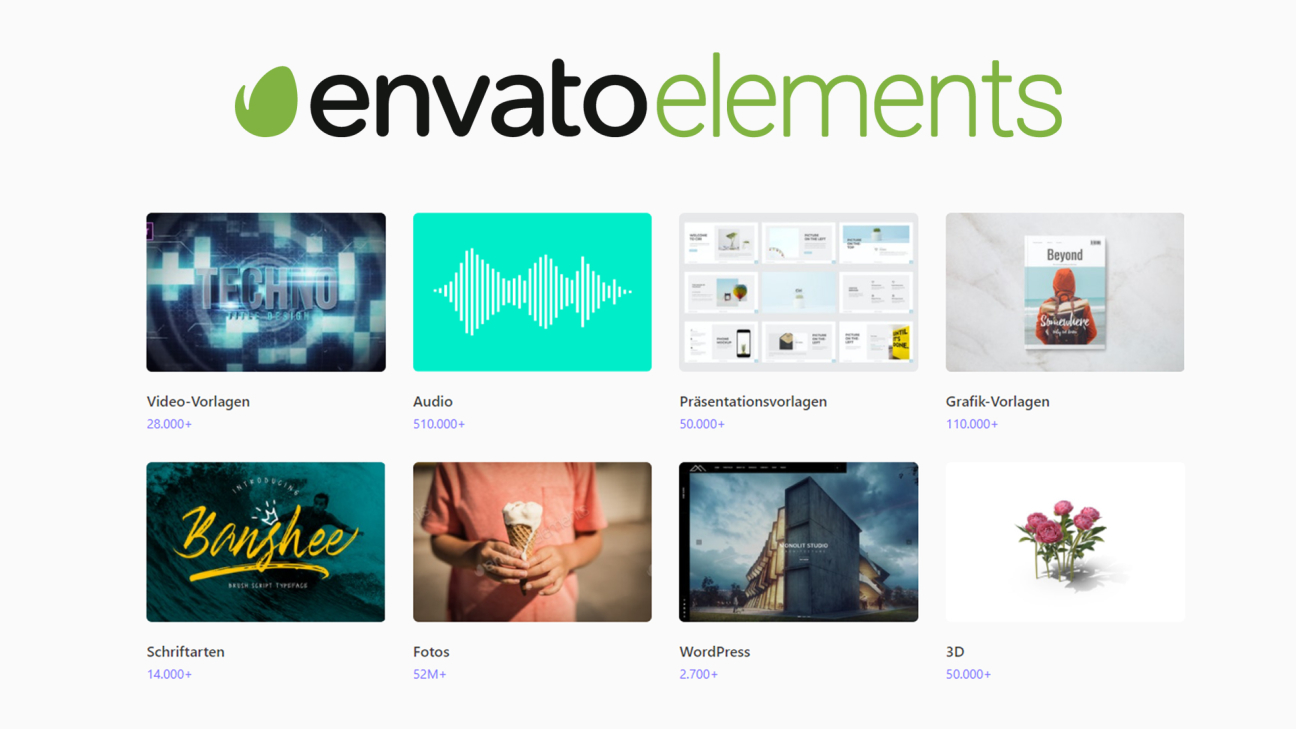
For more advanced needs, Envato Elements offers unlimited access to high-quality templates, transitions, and animated graphics. This means you can keep your content looking fresh without having to design everything from scratch.
Choosing Better Music and Sound Effects
Epidemic Sound
Audio is just as important as visuals. Licensing music from platforms like Epidemic Sound, which costs around $15 per month, gives you access to a massive library of royalty-free tracks that won’t get your videos flagged.
Artlist
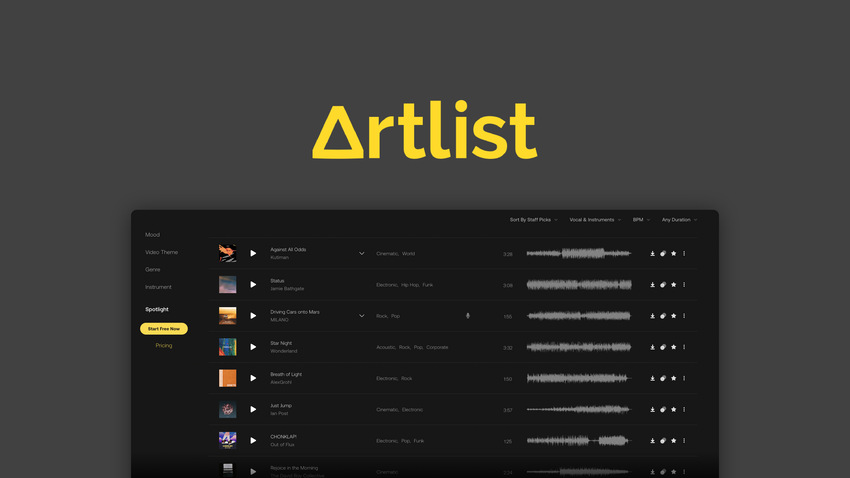
Another excellent option is Artlist, which offers extensive libraries of music and sound effects to match any mood or theme you want.
Using Analytics to Improve
Editing doesn’t stop when you upload your video.
Make sure to dive into YouTube Analytics and see exactly where viewers are dropping off or rewatching. Tools like TubeBuddy also give you deeper insights and help with optimizing future videos.
By studying your analytics, you’ll learn what parts of your videos resonate with your audience and where you might be losing them—valuable information that will guide your next edits.
Summary of Tools and Costs
| Tool | Cost |
|---|---|
| Adobe Premiere | $20.99/month |
| Final Cut Pro | $299 one-time |
| CapCut | Free |
| Canva Pro | $12.99/month |
| Envato Elements | $16.50/month |
| Epidemic Sound | $15/month |
Final Thoughts
Editing YouTube videos like a pro doesn’t mean you need the most expensive gear or software.
It’s about making smart cuts, adding the right visual and audio touches, and learning from your analytics to keep improving. With these tools and tips, you’ll be well on your way to creating content that not only looks professional but keeps viewers coming back for more.